Your cloud is leaking. Here’s how to run Frontier AI entirely on your own hardware.

Stop data leaks in cloud APIs. This local LLM blueprint shows you how to run frontier AI models on your own hardware – privately, fast, and free.
A step-by-step blueprint for self-hosting quantized LLM locally – zero API bills, zero data exposure, and performance that will amaze you.
Every time your AI assistant processes a customer record, financial projection, or internal strategy document, that data leaves your machine. It circulates on the Internet. It will soon be on someone else’s server. And if you’re running a business, it’s not a privacy concern – it’s a responsibility.
Let me be straight with you: the cloud AI model is an amazing feature. You type the prompt, the tokens fly away, and intelligence returns immediately.
But the moment anything in your use case is sensitive – client data, legal documents, source code you haven’t shipped yet, medical records – that feature starts to carry a hidden cost that no pricing page ever lists.
I’ve spent months testing what it really takes to run native large language models on hardware that most developers and business owners already own or can reasonably obtain.
What I found changed my thoughts about AI infrastructure. Running a 70-billion-parameter model on a workstation GPU is no longer a distant dream. With modern quantization techniques, the right orchestration layer, and a clean API surface, you can build an AI backend that matches cloud performance for most enterprise workloads – and does it without sending a single token outside your network.
This is not about being anti-cloud. Cloud AI is really great for experimentation, rapid prototyping, and scaling. But when privacy becomes a barrier – and in 2026, for most industries, it is – you need another way.
This article is that way. We’ll cover the hardware math honestly, walk through Ollama and LM Studio setup with real commands, create a local API endpoint that you can connect to any tool in your stack, and establish enterprise guardrails that prevent data leakage even within your own network.
I’ll also introduce a set of problem-solving frameworks – with names worth remembering – that will help you apply this architecture to real business scenarios, not just toy demos.
By the end, you’ll have the full picture: what hardware you really need, which models run well on it, how to safely deploy them, and how to use them in production. Let’s get into it.
Table of Contents
Why Running AI Locally Is Now a Legitimate Enterprise Strategy
Eighteen months ago, “local LLM” meant wrestling with a slow, inconsistent 7B model that was more distracting than helpful.
Well, now the story changed rapidly – and it changed because of two simultaneous developments: model compression became dramatically smarter, and consumer GPU memory exploded.
Quantization – the process of reducing the numerical precision of the model’s weights – was reducing quality so much that it wasn’t worth it.
That’s no longer true. GGUF-format Q4_K_M quantization now produces outputs that, in side-by-side evaluation, are nearly indistinguishable from full-precision FP16 runs for most real-world tasks.
You are not losing a quarter of the model’s capacity. You are losing maybe 2-4% of benchmark performance by reducing VRAM requirements by 60-70%.
What does that mean in practical terms? The Llama 4 Scout 17B model fits comfortably into 12GB of VRAM in Q4_K_M quantization. A single RTX 4080 Super can run it.
Llama 4 Maverick 70B in the same quantization format requires about 40–44GB – which is achievable on a dual-GPU workstation or on a Mac Studio M4 Ultra with its unified memory architecture.
DeepSeek R2-Lite, one of the most capable reasoning models available by mid-2026, runs well in Q4 quantization on a single 24GB GPU. It’s the RTX 4090. Or 3090. Hardware that developers already have.
Context:
GDPR, HIPAA, CCPA, and India’s DPDP law all impose varying levels of restrictions on the transfer of personal data to third-party processors. For many enterprise use cases – legal analysis, HR document processing, patient triage assistance – local deployment is simply not convenient. It is the only compatible option.
Hardware Equation: What You Really Need (Honestly)
Let’s clear up the confusion. “You need a good GPU” is useless advice. Here is the actual breakdown by use case.
For Individuals and Small Teams (1-5 Concurrent Users)
The RTX 4090 with 24GB VRAM is the ceiling of consumer hardware and the sweet spot for serious local AI work.
It runs 13B models with full precision, 34B models are quantized, and handles a 70B range split across two cards.
Real-world throughput on Llama 4 Scout 17B Q4: around 45-55 tokens per second. It is fast enough for interactive use and synchronous API calls.
If you’re on a budget, the RTX 3090 (24GB) is about the same for inference workloads.
The RTX 4070 Ti Super (16GB) is great for models up to 13B. With capacities below 16GB, you’ll have to rely heavily on quantization or offloading layers to CPU RAM – which tanks throughput but can still work for batch-processing tasks.
For Teams Requiring 10-50 Concurrent Requests
You’re looking at workstation-class hardware: an RTX 6000 Ada (48 GB), or multiple 3090/4090 cards in an NVLink configuration.
Alternatively, AMD’s MI300X with 192GB of HBM3 memory is now accessible via cloud-hosted bare metal and some enterprise hardware programs, although the software ecosystem is still catching up to NVIDIA’s CUDA maturity.
The Mac ecosystem is worth mentioning here.
Apple Silicon’s unified memory architecture means the M4 Ultra can access up to 192GB as a single pool – with the CPU, GPU and Neural Engine all pulling from the same space.
To run large models without multi-GPU complexity, a Mac Studio or Mac Pro can be really competitive for inference workloads, especially if your stack is Python-heavy and you are using tools with MLX support.
| Hardware | VRAM | Max Model Size (Q4) | Approximate Throughput | Best For |
|---|---|---|---|---|
| RTX 4090 | 24 GB | 34B Solo / 70B Dual | 45–55 t/s | Solo developer, small team |
| RTX 4080 Super | 16 GB | 13B FP16 / 17B Q4 | 30–40 t/s | Entry-level local AI |
| Dual RTX 3090 | 48 GB | 70B Q4 | 40–50 t/s | Cost-effective 70B tier |
| Mac Studio M4 Ultra | Up to 192 GB Unified | 405B Q4 | 25–40 t/s | Mac-native workflow |
| RTX 6000 Ada | 48 GB | 70B Q4 / 34B FP16 | 60–80 t/s | Professional workstation |
Common Problems:
Don’t mistake system RAM for VRAM. Your CPU RAM comes in handy when the model is too large to fit entirely on the GPU – both llama.cpp and Ollama support layer offloading to system RAM. But each layer running on the CPU instead of the GPU dramatically reduces throughput. For truly interactive use, the model needs to fit into VRAM.
CARBON Method: Choosing the Right Model for Your Workload
One of the most common mistakes I see is people running the wrong model for the job.
A 70B parameter reasoning model for simple text classification is like driving a semi-truck to pick up groceries.
In contrast, a 7B model that handles complex multi-step legal analysis will fail in a way that you might not even catch until something goes wrong with the product.
I call this the Carbon Method – a decision framework for model selection that takes into account six parameters that really matter.
Problem Solving Framework #1
CARBON Method™ – Model Selection for Local Deployment
Use before committing to any model. Go through all six parameters before pulling the 40GB GGUF file.
C – Task Complexity.
Single-turn question and answer or multi-step reasoning? Simple classification or subtle decision? Higher complexity requires a larger model or a logic-tuned type (look for the suffix “instruction” or “logic”).
A – Accuracy Tolerance.
What is the cost of a wrong answer? For code generation you are reviewing anyway – less. For medical document summaries – high. Higher stakes require a larger, better calibrated model.
R – Response latency requirements.
Is this synchronous (user waiting) or batch (overnight work)? Interactive use demands a fast model; Batch work can use larger, slower models.
B – VRAM budget.
Work backwards from what your hardware can actually run at an acceptable token rate. Don’t choose a model, then check if your hardware fits – do it the other way around.
O – Output format specification.
Do you need structured JSON? Code? Long-form prose? Some quantized models lose format-following ability more than others. Test with your specific output schema.
N – Native fine-tuning potential.
If you plan to fine-tune domain data in the future, choose a base model with an active fine-tuning ecosystem (Llama family, Mistral family). This makes future adaptations dramatically easier.
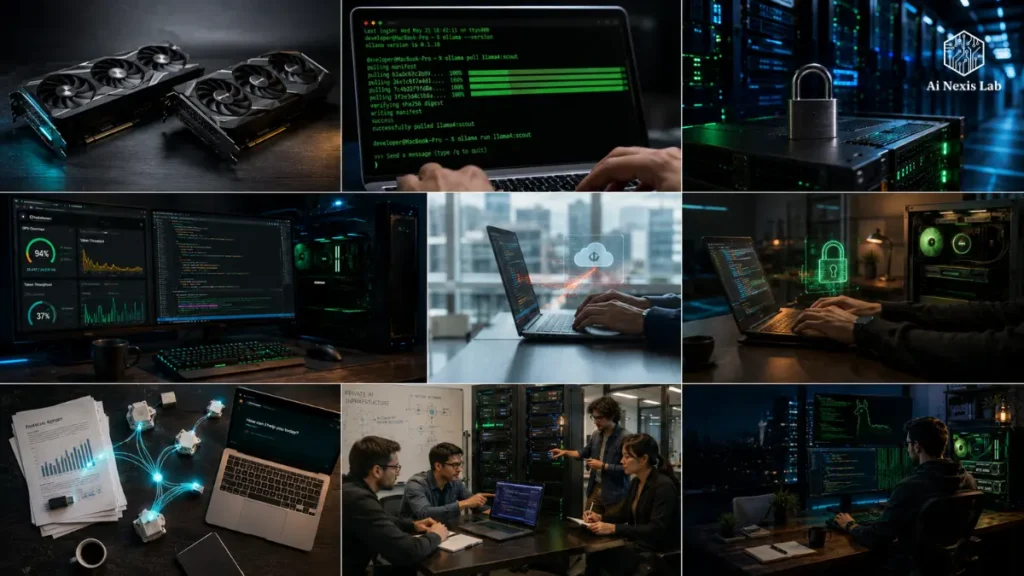
Setting Up Ollama: Your Local AI Runtime in Under 10 Minutes
Ollama is the cleanest way to get a local LLM running.
It handles model download, quantization selection, VRAM management, and serves an OpenAI-compatible HTTP API at localhost:11434. The developer experience is truly excellent.
Here is the complete setup from scratch. These commands work on Ubuntu 22.04/24.04 with NVIDIA GPUs and on macOS with Apple Silicon.
# Install Ollama

curl -fsSL https://ollama.com/install.sh | sh

# Start the service (runs as a systemd service on Linux)

ollama serve

# Pull a model - this downloads the quantized GGUF

ollama pull llama4:scout       # Llama 4 Scout 17B (Q4_K_M ~11GB)
ollama pull deepseek-r2:lite   # DeepSeek R2-Lite (Q4_K_M ~9GB)
ollama pull mistral:7b-instruct # Fast 7B for lightweight tasks

# Run a quick test

ollama run llama4:scout "Summarize the GDPR in 3 sentences."
Once Ollama is running, it automatically exposes a REST API.
You can call it from any language with a simple HTTP client, or use any library that supports the OpenAI API spec (because Ollama mirrors those endpoints exactly).
import requests

url = "http://localhost:11434/v1/chat/completions"

payload = {
    "model": "llama4:scout",
    "messages": [
        {"role": "system", "content": "You are a precise legal document analyst."},
        {"role": "user", "content": "Identify any liability clauses in this contract..."}
    ],
    "stream": False,
    "temperature": 0.2
}

response = requests.post(url, json=payload)

print(response.json()["choices"][0]["message"]["content"])
OpenAI-compatible endpoints mean you can put Ollama as a backend for virtually any existing tool – LangChain, LlamaIndex, Flowise, Dify – by simply changing the base URL and API key (set any non-empty string as the key; Ollama accepts it without validation by default in local mode).
Insider Tip
Set the
OLLAMA_ORIGINSenvironment variable to lock down which hosts can call your Ollama endpoint. By default it only accepts requests from localhost. If you are exposing it to a private network (e.g., to a team of developers on the same subnet), setOLLAMA_HOST=0.0.0.0and use a reverse proxy with authentication – never expose it raw to the internet.
LM Studio: The GUI Path for Non-CLI Workflows
Not everyone lives in a terminal. LM Studio gives you a polished desktop application – available on macOS, Windows, and Linux – that handles model search, downloads, and local server setup through a clean UI.
It also runs a local server mode with an OppenAI-compatible endpoint, which is similar to Ollama’s behavior.
Where LM Studio shines is in model experimentation.
Its built-in chat interface lets you quickly compare output from different quantization tiers (Q3 vs Q4 vs Q5), which is invaluable when trying to find the right quality-speed tradeoff for a specific task. It also provides real-time VRAM usage performance and token throughput statistics – essential for hardware sizing decisions.
For production deployment, I prefer Ollama (it is more automated, runs as a system service, and has better CLI tooling for CI/CD pipelines). But for model evaluation and prototyping? LM Studio saves you iteration time.
VAULT Protocol: Designing a Zero-Leakage Local AI Architecture
Running the model locally is the first step.
In reality, architectural discipline is needed to prevent data leakage in a production environment.
Models may be local; the applications calling them may not. Your observability stack can log prompts.
Your API Gateway can cache responses. Your team’s laptops can sync telemetry with cloud services.
The VAULT protocol is the framework I use to audit local AI deployments for leakage risk.
Problem-Solving Framework #2
VAULT Protocol™ – Zero-Leakage Deployment Checklist
Run this checklist before moving any local AI deployment into production. One missed vector can undo everything.
V – Verify model source integrity.
Download GGUF files only from verified Hugging Face repositories with commit hashes. Compare SHA-256 checksums. Poisoned models are a real supply-chain attack vector in 2026.
A – Audit all logging touchpoints.
Check your application layer, reverse proxy (nginx/Caddy), and observability tools (Prometheus, Grafana, Datadog agents). Any layer that logs request bodies is a leakage point if those logs are sent to a cloud service.
U – Upstream Access Control.
The Ollama endpoint should never be internet-accessible. Put it behind an internal-only reverse proxy. Use network-level firewall rules to enforce this, not just application-level auth.
L – Limit the outbound network for model processing.
Use iptables or Docker network policies to prevent the model server process from making any outbound connections. It shouldn’t be needed. If something tries to call home, you want to block it at the OS level, not just relying on the app.
T – Track the prompt/response data lifecycle.
Define and document where prompt inputs and model outputs are stored, how long they are retained, and who has access. Even in a local setup, if the output is written to a shared database, those records require the same data governance as any other sensitive data.
Securing your Ollama endpoint with a reverse proxy
Here is a production-ready nginx configuration that adds basic authentication and restricts access to only the internal subnet:
# /etc/nginx/sites-available/ollama-internal

server {
    listen 443 ssl;
    server_name ollama.internal.yourdomain.com;

    ssl_certificate     /etc/ssl/certs/internal.crt;
    ssl_certificate_key /etc/ssl/private/internal.key;

    # Restrict to internal network only
    allow 10.0.0.0/8;
    allow 192.168.0.0/16;
    deny all;

    location / {
        auth_basic           "Local AI Gateway";
        auth_basic_user_file /etc/nginx/.htpasswd;

        proxy_pass         http://127.0.0.1:11434;
        proxy_set_header   Host $host;
        proxy_set_header   X-Real-IP $remote_addr;

        # Disable response buffering for streaming
        proxy_buffering    off;
        proxy_read_timeout 300s;
    }
}
Insider Tip:
For team deployments where multiple developers need to access a local LLM server, consider running it in a dedicated HomeLab VM or NAS with WireGuard VPN. Each developer model tunnels over an encrypted VPN to reach the endpoint. Zero internet exposure. Full team access. Audit logs remain entirely on-premises.
Performance Tuning: Getting the Maximum Tokens Per Second on Customer Hardware
The performance of the raw model varies greatly depending on the configuration.
Most people run the model on default settings and leave significant throughput on the table. Here’s what really moves the needle.
Quantization Tier Decision
For most enterprise text tasks (summarization, classification, extraction), Q4_K_M is the right choice.
It maximizes quality-per-GB.
If you are doing complex logic, mathematical analysis, or code generation where subtle errors compound, stepping up to Q5_K_M or Q6_K is valuable.
Q3 and below: Use only for batch processing tasks where speed is more important than accuracy, and you have a validation layer that catches errors downstream.
Context length and its VRAM cost
Context length has a non-linear relationship with VRAM usage. A 4096-token Context on the 7B model uses dramatically less memory than a 32768-token Context. The KV cache – which stores computed key and value matrices for each token in your context window – scales with context length.
If your use case allows it, keeping context windows tight improves throughput and allows you to serve more concurrent requests on the same hardware. Use retrieval-augmented generation (RAG) to pass only the relevant 800-1200 tokens to the model instead of the entire document.
# Set context length explicitly in Ollama Modelfile

FROM llama4:scout

PARAMETER num_ctx 4096    # Reduce for faster throughput
PARAMETER num_gpu 99      # Force all layers to GPU
PARAMETER num_thread 8    # CPU threads for any offloaded layers
PARAMETER temperature 0.1  # Low temp for deterministic output

SYSTEM """You are a precise enterprise assistant. Return only JSON when requested."""
# Build the custom model config
ollama create mycompany-scout -f ./Modelfile
# Verify it runs correctly
ollama run mycompany-scout '{"task": "extract_entities", "text": "..."}'Performance Note:
On NVIDIA GPUs, make sure you are running the latest CUDA drivers. Ollama on CUDA 12.4+ shows measurably higher throughput than CUDA 11.x for flash-attention-enabled models. Run
nvidia-smito check your driver version and update via the NVIDIA driver site if you are behind.
Pipeline Shift Framework: Migrating existing cloud AI workflows to on-premises
Here’s the practical challenge most teams face:
You already have a workflow built on OpenAI or Anthropic’s API. Migrating them can seem daunting. If you approach it with the right order, it’s not difficult.
Problem Solving Framework #3
Pipeline Shift Framework™ – Cloud-to-Local Migration Sequencing
Don’t migrate everything at once. This sequence minimizes risk and maximizes ROI on hardware investment.
Phase 1 – Inventory.
List every cloud AI call in your codebase, categorized by sensitivity (is it PII, proprietary data, trade secrets?) and frequency (how many calls per day?). This gives you a priority map.
Phase 2 – Pilot high-frequency, low-sensitivity tasks first.
Internal search, meeting note summarization from anonymized transcripts, code comment generation – these are safe, high-volume tasks to validate your local setup without risk.
Phase 3 – Just change the base URL and model name.
Ollama mirrors the OpenAI API, so most migrations require changing exactly two lines: the base URL and the model string. Test for output parity before touching the prompt logic.
Phase 4 – Migrate sensitive tasks with output validation.
For high-stakes workflows, add a validation layer that checks the output structure and quality before the result is used downstream. This is good practice, but especially during migration.
Phase 5 – Deactivate cloud credentials for migrated flows.
Explicitly revoke cloud API access for services that have been fully migrated. Don’t just let them sit idle – key propagation is a security risk.
Two-line migration for OpenAI-based codebases
If your code uses the OpenAI Python SDK, the migration looks exactly like this:
from openai import OpenAI

# BEFORE (cloud)
# client = OpenAI(api_key="sk-...")

# AFTER (local) - only these two lines change
client = OpenAI(
    base_url="http://localhost:11434/v1",
    api_key="local"  # Ollama ignores this value
)

response = client.chat.completions.create(
    model="llama4:scout",  # was "gpt-4o" previously
    messages=[
        {"role": "user", "content": "Analyze this contract clause..."}
    ]
)

print(response.choices[0].message.content)
That’s it. Your existing retry logic, streaming handlers, function-calling wrappers – they all continue to work because the API surface is the same.
RAG Architecture for Local Models: Connecting Private Documents Without Cloud Exposure
Local models are powerful for general logic. It becomes truly transformative when paired with your own data through a retrieval-augmented generation (RAG) pipeline – where your documents, databases, and internal knowledge base become searchable references for every query.
The entire RAG stack can run locally. Here is the architecture:
# Minimal local RAG stack using Ollama + ChromaDB

import chromadb
from openai import OpenAI

# 1. Local embedding model via Ollama

embed_client = OpenAI(
    base_url="http://localhost:11434/v1",
    api_key="local"
)

def get_embedding(text: str) -> list:
    resp = embed_client.embeddings.create(
        model="nomic-embed-text",  # runs locally via Ollama
        input=text
    )
    return resp.data[0].embedding

# 2. Local vector store (ChromaDB - runs entirely in-process)

chroma = chromadb.PersistentClient(path="./local_vector_db")
collection = chroma.get_or_create_collection("private_docs")

# 3. Index your documents (run once, or on document change)

def index_document(doc_id: str, text: str):
    embedding = get_embedding(text)
    collection.add(
        ids=[doc_id],
        embeddings=[embedding],
        documents=[text]
    )

# 4. Query: retrieve relevant chunks, then call LLM

def rag_query(question: str) -> str:
    query_embedding = get_embedding(question)
    results = collection.query(
        query_embeddings=[query_embedding],
        n_results=3
    )
    context = "\n\n".join(results["documents"][0])

    llm_client = OpenAI(
        base_url="http://localhost:11434/v1",
        api_key="local"
    )

    response = llm_client.chat.completions.create(
        model="llama4:scout",
        messages=[
            {"role": "system", "content": f"Answer using only this context:\n\n{context}"},
            {"role": "user", "content": question}
        ]
    )
    return response.choices[0].message.content
Every component here – the embedding model, the vector database, the LLM – runs locally.
No document content ever leaves your machine. You can run this on your laptop with a healthcare record database and remain HIPAA-compliant the entire time.
That’s not an exaggeration. That’s the point.
Insider Tip:
For production RAG, consider Qdrant (self-hosted with Docker) instead of ChromaDB for large document storage. Qdrant handles millions of vectors efficiently and has a better query API for production use. ChromaDB is great for prototyping and storage under ~100K documents.
Enterprise Guardrails: Rate Limiting, Multi-User Auth, and Audit Logging
Once your local LLM is running for more than just personal use – when a team of 10 people is accessing the same endpoint – you need infrastructure around it.
The model itself does not handle authentication, rate limiting, or audit trails. You build that layer.
A lightweight solution: LiteLLM Proxy. It wraps your Ollama instance with a production-ready API gateway that adds multi-user virtual key management, per-user rate limiting, request logging to a local database, and cost tracking (useful even for “free” on-premises models, as you may want to track compute budgets).
# litellm_config.yaml

model_list:
  - model_name: local/scout
    litellm_params:
      model: ollama/llama4:scout
      api_base: http://localhost:11434

  - model_name: local/reasoner
    litellm_params:
      model: ollama/deepseek-r2:lite
      api_base: http://localhost:11434

litellm_settings:
  success_callback: ["local_logger"]  # log to local DB only
  failure_callback: ["local_logger"]
  max_budget: null  # no cloud spend, but track compute

router_settings:
  num_retries: 2
  timeout: 120
# Start LiteLLM proxy
litellm --config litellm_config.yaml --port 4000 --detailed_debug
# Generate a team API key
curl -X POST http://localhost:4000/key/generate \
-H "Authorization: Bearer sk-master-key" \
-H "Content-Type: application/json" \
-d '{"models": ["local/scout"], "max_parallel_requests": 3}'Common Pitfalls:
Don’t send a team without setting a rate limit. Without it, one user running a batch job could saturate the GPU and lock up everyone else for hours. LiteLLM’s max_parallel_requests per key is the simplest guard. Set it to 2–3 for interactive use, higher for dedicated batch processing keys.
Frequently Asked Questions
Can local LLM match GPT-4o quality for enterprise tasks?
For most structured enterprise tasks – document classification, extraction, summarization, code review, internal Q&A – modern 70B quantized models such as Llama 4 Maverick and DeepSeek R2 are competitive with GPT-4o. Where cloud models still excel is in very long-context tasks (over 100K tokens), highly nuanced creative or argumentative writing, and sophisticated benchmark performance.
For most business workflows, this gap has reached the point where local deployment is a legitimate choice based on quality, not just privacy compromise.
What is the cheapest hardware setup to get started with local AI?
The used RTX 3090 (24GB VRAM) is the best entry-level buy in 2026. It is available on the secondary market for $600–900 and runs 17–34B quantized models at usable throughput.
Pair it with a Ryzen 9 or Intel i9 system with 64GB of DDR5 RAM (for CPU offloading flexibility), and you have a capable local AI workstation for a total cost of under $2,000 – which pays for itself quickly compared to cloud API costs at any serious usage volume.
Is running AI locally really HIPAA or GDPR compliant?
Compliance is not determined by where the model runs – it is determined by how the entire system is designed, secured, and managed.
Local deployment eliminates third-party data processor risk (a major compliance concern), but you still need access controls, audit logging, data retention policies, and encryption for any stored prompts or output.
Running locally makes it much easier to achieve compliance, but it doesn’t replace proper data governance. Always work with a compliance officer for regulated industries.
How does local AI handle fine-tuning on proprietary data?
This is the biggest advantage of the local route. With tools like Axolotl, LLaMA-Factory, or Unsloth, you can fine-tune Llama-family or Mistral-family models completely on-premises on your proprietary data. The fine-tuned weight is yours. It never leaves your hardware.
For domain-specific tasks – legal brief analysis, product-specific technical support, industry vocabulary extraction – a fine-tuned 13B model will consistently outperform a generic 70B model, while requiring much less VRAM to run.
Can a small team efficiently share one local LLM server?
Yes, with the appropriate gateway level. Using LiteLLM proxy (or similar) on top of Ollama, a single RTX 4090 can comfortably handle a team of 5-8 concurrent users for interactive tasks, assuming typical usage patterns (not everyone submitting large prompts at once).
For teams larger than 10, consider dual-GPU hardware (a dual-4090 PCIe riser setup is surprisingly affordable) or a dedicated workstation-class card like the RTX 6000 Ada with 48GB of VRAM, which handles larger models and more concurrent loads with headroom.
Final Verdict
This is the time for infrastructure. Don’t miss it.
The window between “local LLM is a hobby project” and “local LLM is standard enterprise infrastructure” is rapidly closing.
The models are there. The tools are there. The hardware is accessible.
All that’s left to put it together is architectural knowledge.
Here’s the honest summary:
If you’re sending sensitive data to a cloud AI API in 2026, you’re accepting a risk you don’t need to accept.
Not because cloud AI is bad – it’s excellent – but because the alternative now works, and it works so well that the tradeoff analysis has fundamentally changed.
The Carbon Methodology tells you which model to choose.
The VAULT protocol tells you how to keep it leak-proof.
The PIPELINE Shift Framework tells you how to shift without disruption.
The code in this article gives you everything you need to get it up and running in an afternoon.
Your data is your treasure. Local LLM infrastructure is the same way you can maintain it.