Beyond TL;DR – The Ultimate Guide to AI PDF Summarizers in 2026
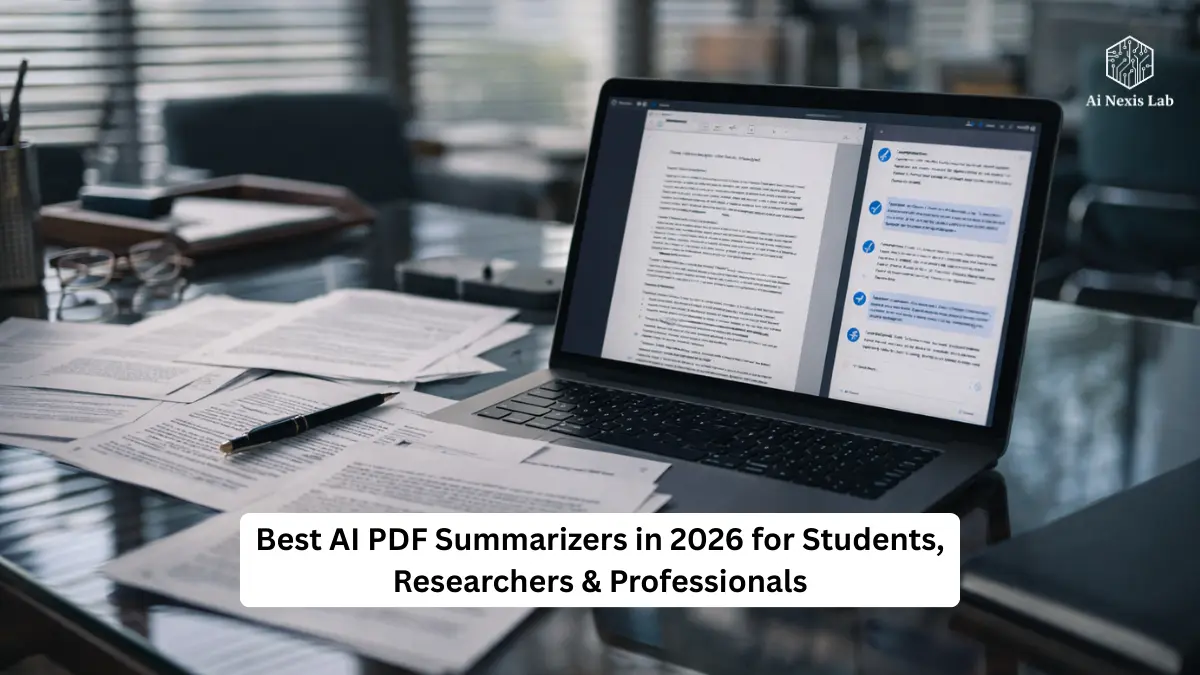
Explore 7 powerful AI PDF summarizers for 2026 – top tools like ChatPDF, Adobe Acrobat AI, SciSpace, NoteGPT and more to streamline reading & insight extraction.
If you still think that “AI Summary” is three vague bullet points written at the bottom of a PDF export – we’ll quickly change your perception.
In 2026, AI isn’t just automating skimming – it’s fundamentally changing how we understand documents, interact with them, and extract value from them. Whether you’re working with dense legal contracts, scientific studies, quarterly reports, scanned images, lecture notes, or piles of PDFs that are confusing you – the right tool can save hours of manual reading and brain damage.
But let’s be brutally honest: the market is still a mess. There is a big difference between what tools claim to do and what they actually deliver. Some are hype machines. Some really help you understand complex material. Your job is to avoid the pitfalls and focus on the ones that make a measurable difference.
This guide breaks down the best, most reliable AI PDF tools as of 2026, what they actually do, where they fall short, and how to create a workflow that works for you instead of wasting time chasing flashy features.
Table of Contents
How These Tools Are Evaluated – What Really Matters in 2026
Before we look at specific tools, let’s be clear about what separates useful PDF summarization AI from garbage:
Summarization Quality
- Does it actually capture meaning, not just sentences that seem important?
- Can it handle narrative flow, logic, nuance, contradiction, and technical detail?
References and Verification
- Does the tool cite where the facts are drawn from in the original document?
- Can you verify each claim without guessing?
Contextual Care
You don’t want an AI that “forgets” the beginning of a 100-page document by the time it gets to page 20.
Interactive Q&A
The real power isn’t just in the “summary” – it’s in asking specific questions about the PDF.
Security and Privacy
Especially for confidential documents, free summarizers can use your uploads to train models. That’s unacceptable in professional use.
These criteria – not marketing language – are what separate the tools that are worth using from the summaries that are truly intended.
1. The Heavy Hitters – Best for Deep Work, Complex Docs, and Professionals
This is what you reach for when clarity is important and superficial summaries just won’t cut it.
Adobe Acrobat AI (and Acrobat Studio)
Adobe has gone from “just a PDF reader” to a full-fledged AI document hub.
- Accurate structural summaries: Because Adobe knows the PDF format, its AI understands the structure (headings, tables, captions, footnotes) – which dramatically reduces confusion.
- Generative features: You can automatically turn summaries into emails, presentations, and even podcasts.
- Enterprise Security: SOC2 compliance and enterprise controls make this a legitimate choice for sensitive work.
Best for: Corporate professionals, legal teams, compliance officers who can’t afford mistakes.
Limitations: High cost and learning curve compared to free tools.
Claude / Claude-powered PDF helpers
These are still among the most powerful for real comprehension, especially with large or complex texts.
- Excellent at synthesizing subtleties in long documents.
- Excellent at multi-step reasoning – if you prompt it effectively, not just to summarize, but to analyze contradictions and implications.
Best for: Policy briefs, research reports, legal and compliance analysis.
Limitations: While its summary quality is strong, it generally requires careful prompting to obtain structured output.
2. Academic and Research Experts – Great for Papers, Studying, and Teaching
These tools go beyond “top-line bullets” and start understanding structure and logic.
SciSpace
SciSpace is explicitly designed for research workflows.
- References, LaTeX understands equations, figures, and tables better than ordinary tools.
- It can explain the meaning of tables and references in plain English – not just spit out text.
Best for: Students, researchers, academics who need true understanding.
Drawbacks: More specific focus – not so good for business or legal documents.
Scholarcy
Scholarcy organizes academic papers into their main components (background, methods, results).
- Breaks down research into flashcard-style summaries and extracts references.
- Great for literature review workflows and batch processing.
Best for: Research teams and students with heavy literature requirements.
Drawbacks: Not as intuitive for business-style summaries.
3. Everyday Tools – Quick Summary and Chat-with-PDF Apps
If you want something simple, these are the most useful options:
ChatPDF
Old but still relevant – you upload a PDF and ask questions like a chatbot.
It’s not perfect with complex documents, but it’s fast and easy.
Best for: Students, quick reading, casual use.
Limitations: Lack of enterprise security and deep understanding for highly technical documents.
Smallpdf and Lumin PDF
Simple, browser-based tools that provide good quick summaries.
- Lumin has built-in OCR for scanned documents and secure file handling.
- Smallpdf is simple and fast for surface-level summarization.
Best for: Quick first-pass summarization.
Limitations: Output may be shallow compared to deeper instruments.
NoteGPT, Knowt, PDFGPT and related tools
These are emerging options that focus on organizing summaries into notes, outlines, mind maps or study aids – often with free tiers.
Best for: Students and quick note generation.
Limitations: Not designed for deep professional use.
4. Workflow and Automation – Increasing Your Productivity
Tools in this category don’t just summarize – they integrate with your daily tools:
- Some tools connect to Google Drive, calendar apps, note boards, or Slack to automate tasks based on PDF content.
- Others can process entire folders of documents and automatically generate efficient tasks, emails, and summaries.
This is worth looking into if your work is repetitive or document-heavy, but it will usually be more expensive and require setup.
Reality Check – AI Still Has Limitations
Despite the Larger Pages:
Misunderstandings Still Happen
Even the best models can misinterpret subtle language or misrepresent facts – especially in longer documents. Always verify key claims against the source.
Tables and figures remain difficult
Most summaries struggle with complex tables, figures, and layout-heavy pages.
Free versions often train on your data
If you’re uploading sensitive or proprietary documents to free tools, there’s no guarantee that your text isn’t getting into someone’s training set.
How to Use These Tools Properly (Not in a Fake Marketing Way)
Here’s a practical workflow that actually works:
Step 1 – Part One
Don’t dump 200 pages at once. Break it down into logical chunks (e.g., 5-10 pages). Small batches reduce errors and contextual flow.
Step 2 – Ask Better Questions
Instead of “Summarize this,” ask:
- “What are the risks mentioned on pages 20-40?”
- “What findings impact investors’ due diligence?”
- “List all sources cited with references.”
These prompt styles force the model to engage critically.
Step 3 – Verify
If the summary mentions specific facts or claims, check that they point to actual lines in the PDF. This is not an option for serious work.
Step 4 – Level Enrichment
After getting summaries from a tool, run them through the following:
- A writing assistant for polish
- A context extractor for context validation
- A Q&A tool for targeted responses
This gives you depth rather than just a surface summary.
Most people never learn a power user workflow
Here’s what separates the person who tries AI PDF tools from the person who saves 10+ hours a week.
Most people upload the PDF, press “summary”, read the output, and move on. That’s amateurish usage. The real benefit comes from turning AI into a document analyzer, not a summarizer.
Start with a map, not a summary.
Your first prompt should be:
“Build the structure of this document with section objectives, not summaries.”
This forces AI to understand architecture before content. Once you have that map, you can surgically extract what you need instead of reading a general summary.
Next, switch to targeted extraction. Ask things like:
- “List all the risk factors mentioned with page references.”
- “Where does the author contradict himself?”
- “What assumptions does this report make that are not supported by the data?”
This is where AI becomes dangerous in a good way – it detects patterns that humans miss while skimming.
Then comes the verification loop. Take the AI’s claims and ask:
“Cite specific lines from the PDF that support each of the points above.”
If he can’t, you’re delusional.
Finally, perform a cross-document synthesis. Upload multiple PDFs and ask:
“Where do these documents agree, and where do they contradict?”
This is something that humans almost never have time to do manually – and that’s where AI provides insane benefits.
This workflow turns AI from a lazy shortcut into a serious analytical assistant – the difference between reading less and actually understanding more.
Frequently Asked Questions
Q: Can AI summarizers handle scanned PDFs and images?
A: Yes – some tools have integrated OCR that converts scanned pages into text before summarizing. Lumin is one example with OCR built-in.
Q: Are there limits on PDF length?
A: Free tiers often limit page count or document size, but professional tools can handle longer PDFs – although the quality may still drop if you ask for a single large summary.
Q: Are my uploads used to train AI?
A: Free tools often use uploads to improve their models. Paid or enterprise services (Adobe Enterprise, Claude Enterprise) typically promise not to use your data for training.
Q: Can these tools handle any language?
A: Most modern tools support multilingual summaries and translations, although the quality varies. Always check language support before uploading.
Q: What is better – summary or chat?
A: For a high-level reference, start with the summary. For specific insights and verification, use the “Chat with PDF” tool.
Final Verdict – Tool Choices Based on What You Really Need
Deep, Accurate Insights:
→ Adobe Acrobat AI Assistant, Claude AI PDF Tools
Academia and Research Papers:
→ ScienceSpace, Scholarcy
Quick Summaries and Casual Use:
→ ChatPDF, SmallPDF, Lumine
Study Aids and Note Generation:
→ NoteGPT, Note
Batch Workflows and Automation:
→ Tools that integrate with Drive/Slack/Notion (varies by implementer)
If you care about quality over hype, choose tools that give you verifiable output with citations, and always double-check the AI’s work. AI should augment your thinking – not replace your verification.